Category & Subcategory
This guide explains how to create a new category with options to add an image, name it, and manage subcategories.
Category Creation Guide
1. Choose Category Image
- Click Choose File to upload an image representing the category.
- Use a clear, relevant image that will display alongside the category.
2. Enter Category Name
- Type the name of the category.
- Make sure the name is clear and descriptive (e.g., "Electronics," "Clothing").
3. Subcategory Switch
- There is a Subcategory switch at the bottom of the form:
- If switch is ON:
- A dropdown appears below the switch listing all parent categories.
- Select the parent category under which your new category will be a subcategory.
- If switch is OFF:
- The new category will be created as a parent (top-level) category with no parent assigned.
- Switch default: OFF (category created as a parent category by default).
4. Save
- After filling all required fields, click the Create or Save button to add the category.
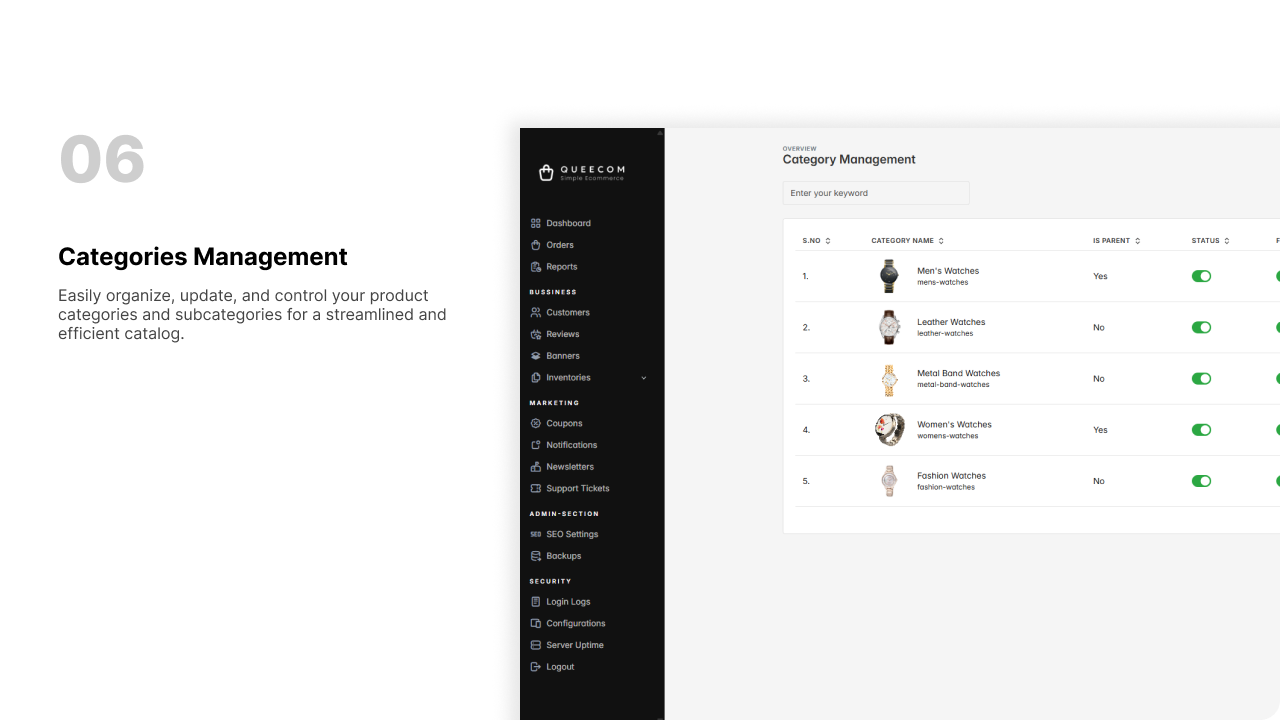
- The category will now be listed in the category management area, properly nested if selected as a subcategory.
⚡ This simple workflow allows easy management of categories and subcategories with clear visual options.