Customer Reviews Overview
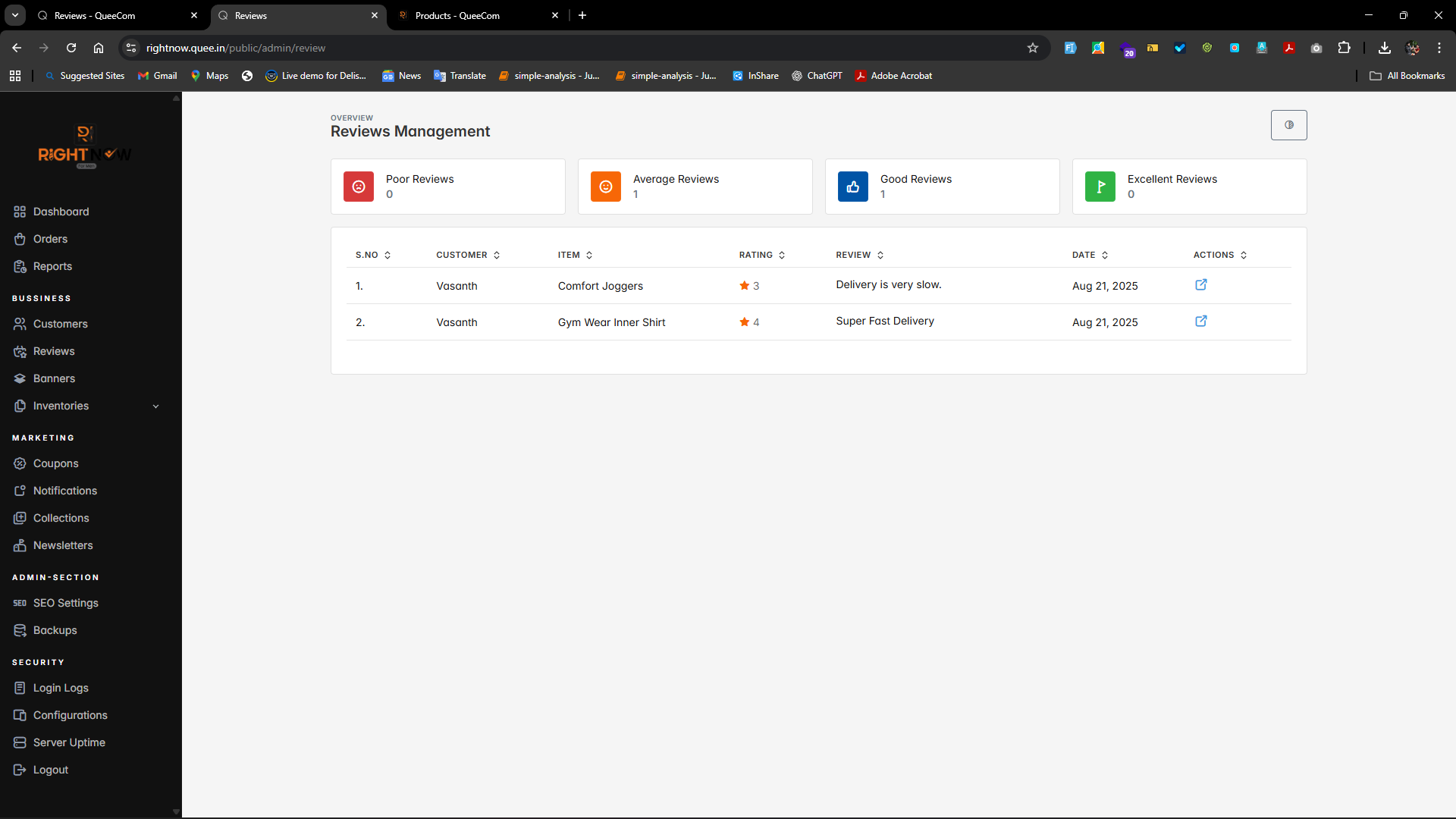
1. Review Rating Cards
On the Admin → Reviews page, you will see summary cards showing counts of reviews by rating category:
| Card | Description |
|---|---|
| Poor | Reviews rated as poor (1-2 stars) |
| Average | Reviews rated average (3 stars) |
| Good | Reviews rated good (4 stars) |
| Excellent | Reviews rated excellent (5 stars) |
These cards help you quickly understand overall customer satisfaction.
2. Viewing and Filtering Reviews
Below the summary cards is the Reviews Table, listing all submitted reviews with key details.
Available Filters:
- Date Range: Select start and end dates to filter reviews within that period.
- Rating: Filter reviews by rating (Poor, Average, Good, Excellent).
- Keyword Search: Find reviews by customer name or keywords in review text.
How to View Review Details:
- In the Admin → Reviews section, find the review you want to inspect.
- Click the View button next to the review.
- This opens the full review details for analysis.
Summary Table of Actions
| Action | Location | Notes |
|---|---|---|
| View Reviews | Admin → Reviews | Lists all customer reviews |
| Filter Reviews | Filters section | Select date, rating, or text |
| View Review Detail | Reviews Table | Click View button |
Best Practices
- Regularly monitor poor and average reviews to improve products.
- Use filters to spot trends and customer sentiments.
- Respond promptly to critical reviews to maintain trust.
⚡ Stay connected with your customers by actively managing reviews!