Orders Dashboard
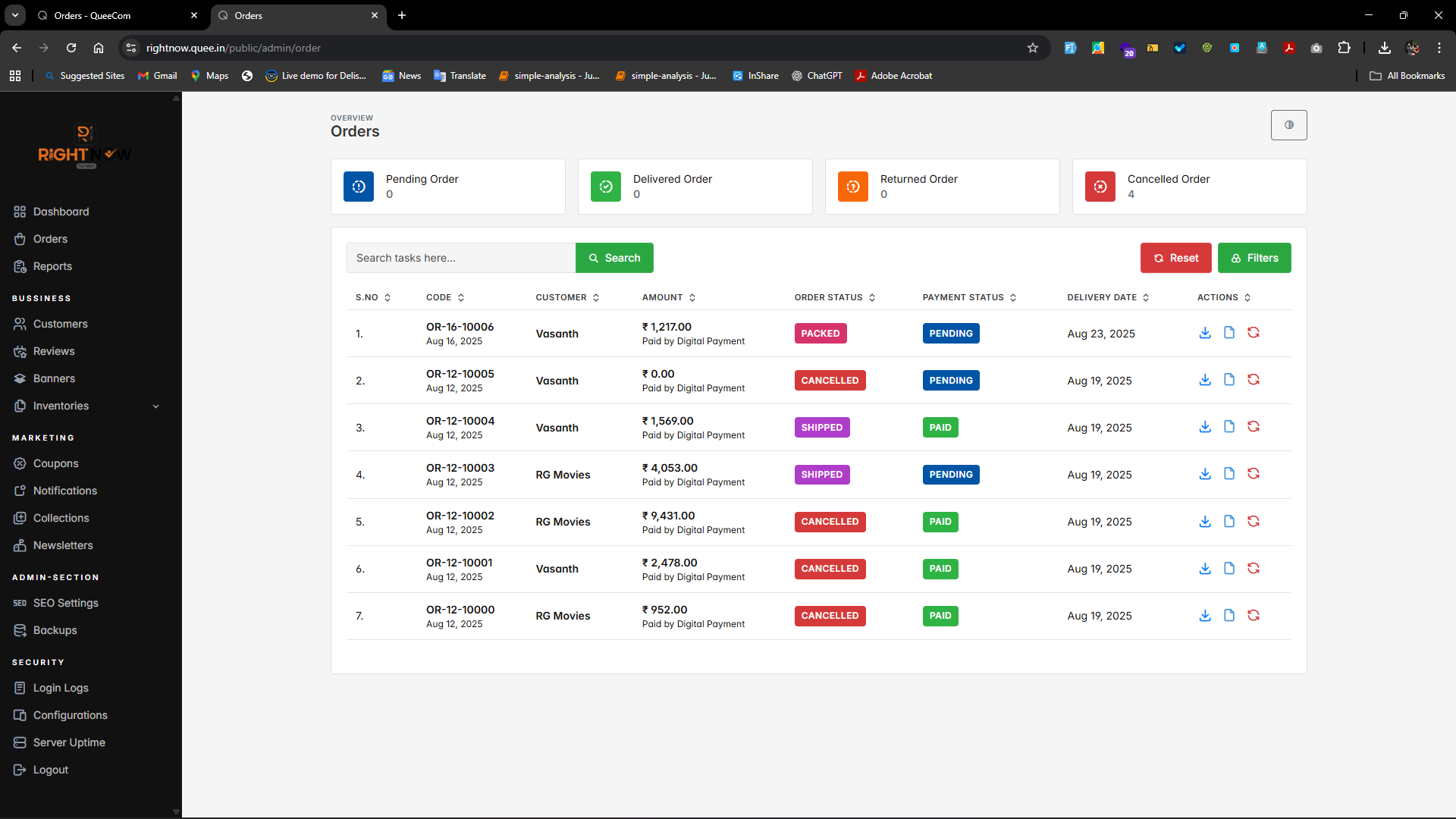
On the Admin → Orders page, you will see summary cards at the top showing counts of orders in the following categories:
| Card | Description |
|---|---|
| Pending Orders | Number of orders waiting to be processed |
| Delivery Orders | Number of orders out for delivery |
| Return Orders | Number of orders requested for return |
| Cancelled Orders | Number of orders cancelled by users or admin |
These cards provide an at-a-glance overview of your current orders status.
Orders Table and Filters
Below the status cards is the Orders Table, listing all orders with details like order ID, customer, status, payment, and date.
Available Filters:
- Date Range: Select a start and end date to filter orders within specific periods.
- Order Status: Filter orders by status. Options include:
- Pending
- Packed
- Delivered
- Shipped
- Processing
- Cancelled
- Payment Status: Filter by payment state:
- Pending
- Failed
- Paid
- Refunded
- Cancelled
Using Filters:
- Select your desired filters from the dropdowns or date pickers.
- Click Apply Filters to update the orders shown.
- To clear all selections, click Reset Filters.
- Use the Search field to find orders by customer name, ID, or other criteria.
Viewing Order Details
- Click the View button on any order entry in the Orders Table.
- This opens a detailed order page showing:
- Order Items: List of products in the order with quantities and prices.
- Total Amount: Final amount for the order.
- Customer Address: Shipping and billing address details.
- Order Status Timeline: Visual progress of the order through various stages.
Managing Order Status
- Within the order detail page, there is a Status Select Box to change the order's status easily.
- Select a new status from the dropdown and save to update.
Additional Status and Tracking
- For order statuses other than Pending, Cancelled, or Delivered, a Tracking Field is available.
- Enter the Tracking ID provided by the courier or delivery service.
- Click the Save Icon to save the tracking information.
- Customers can then track their order using this tracking ID.
Summary Table of Actions
| Action | Location | Notes |
|---|---|---|
| View Orders | Admin → Orders | Default orders list |
| Apply Filters | Filters section | Select criteria, then apply |
| Reset Filters | Filters section | Clear all applied filters |
| Search Orders | Search field | Use keywords like order ID |
| View Order Details | Orders Table | Click View button per order |
| Change Order Status | Order detail page | Use status dropdown |
| Add Tracking ID | Order detail page | Enter tracking info for shipping |
Helpful Tips
- Regularly use filters to quickly locate orders.
- Use dashboard cards for quick status updates.
- Keep tracking IDs updated to improve customer experience.
- Reset filters to avoid accidentally narrow views.
⚡ Managing orders efficiently helps maintain smooth operations and improve customer satisfaction!